Your online Softimage Educational Resource

The blog has been online for more than 4 years and there’s still not a single post even remotely related to the delicious brew called coffee… Perhaps it will someday, but in the meantime you can read the articles about Softimage. Most of the material are tutorials and Q&As I’ve written for 3D World Magazine sometime between today and 2003. If you have any questions please don’t hesitate sending me an email.


Thanks to Letterbox Animation Studios for hosting all the scene files.

Make sure you visit their Redi-Vivus.com for 100s of hours of free XSI video tutorials.

Showing posts with label Scripting. Show all posts

Monday, August 15, 2011

Frame number as 3D text

From the Create > Text menu choose Solid Mesh. Unlike most other parameters in Softimage, the editing pane does not come with an animation icon and as such it does not offer a direct way to animate or control via expression. However, this certainly does not mean it can’t be done. You’ll return to the PPG in a second, but close it for now. There’s a slight difference between the standard primitives in Softimage and the text object. While the standard primitives creates a single object the text operator instantly renders your input text as curves which are then converted to a 3d object using the convert curves to mesh command. As such, it automatically creates two new objects; the text object which is the converted curves and the polymsh object which in turn is the 3d conversion of the curves. If you haven’t done so already, press [8] to open an Explorer. Click on the (+) sign next to the Text node and expand the NURBS Curve List > Text To Curve Converter. Right-click on the Text node and choose Set Scripted Operator… from the popup menu. Scripted operators are a bit like expressions on steroids and enable you to bring scripting into play to control parameters in your scene.

In order to print the current frame you first need to extract that particular information from the scene. This is done with the In_UpdateContext.CurrentFrame property. The next step is to apply this value to a parameter, namely the input used to create the curves of the text object.

In the top editing pane, enter
oCurrFrame = In_UpdateContext.CurrentFrame
Out.Value.Parameters("text").Value =oCurrFrame

Press the Apply button to apply the operator and then close the PPG. Your text object will now display your current frame as 3d object. If you scrub the timeline you’ll notice a slight inaccuracy. The current frame does not get updated. By default the scripted operator will only update if the input or parameter is changed. In the Explorer, expand the Text tree to display the Script Op node and click on the S icon to open the PPG. Check the AlwaysEvaluate checkbox and close the PPG.

Select the polymsh object and press [Ctrl] + [End] to open the last operator in the stack (the Curve To Mesh PPG). By default the size of the text is set to an absolute size in Softimage units which will cause a slight jitter when you playback the animation. In the Text To Curve_Converter section, change the Text vs Font Size Method to Ratio: Points per Softimage Unit. Close the PPG and you’re done.

The project files used in this tutorial can be found at:http://dl.dropbox.com/u/3834689/CaffeineAbuse/Scripted_Text_Operator.zip

Quick tip
If you’re using an earlier version of Softimage the In_UpdateContext.CurrentFrame property may not function. If so simply replace it with GetValue("PlayControl.Current")


Read the full post>>

Sunday, June 28, 2009

Replace object A with a random new object


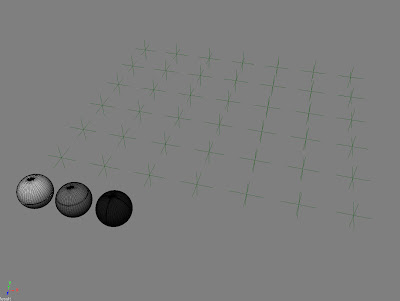
You’ve spent countless nights trying to finish the project on time and you’re just about to hit that sweet render button when the brilliant client comes through the door. He has just decided that he doesn’t want the landscape of cubes any more; he wants a random mixture of spheres, orbs and globs. Then he leaves you with the inspiring task of replacing the whole scene. A scenario that sadly isn’t all that uncommon. Though there’s no need to despair, with the solution below you should be home long before bedtime.

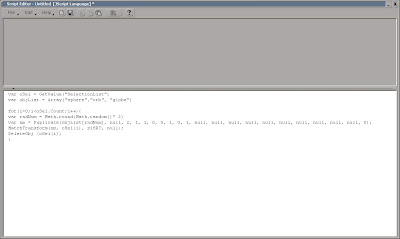
Open the scene spheres.scn from this issues CD. Press [Alt] + [4] to open the Script Editor and from the File menu choose Preferences... Change the Scripting Language to JScript and check the Log Commands checkbox. Close the PPG. Now, let’s have a quick look at the ingredients that you’ll be using in the script. Select an object, press [Ctrl] + [D] to create a duplicate, from the MCP > Transform menu choose Match All Transforms and pick any object. Then press [Del] to delete it. The script editor has just logged all the commands you need. The next step is to add which objects to replace, which objects that will be used to replace them and a random function that will choose one of these objects. The final script will look like this.


Since the script picks one of the three objects randomly, you can run the script again if you’re not happy with the distribution after the first run.


The project files used in this tutorial can be found at:
http://www.Redi-Vivus.com/Caffeineabuse/Random_Replace.zip


Quick tip
Change the Duplicate command to Clone (or Instantiate if you’re using models) to create clones of the replacing objects instead of duplicates.


Read the full post>>

Thursday, May 14, 2009

Animating a mechanic billboard in Softimage XSI

While the mechanical billboard is outdated at best, your virtual version is just about to start its glory days.

Start by opening the Billboard.scn scene from this issues CD. The scene contains a bunch of trilons or triangular prisms, 300 to be precise. Using a couple of thousands would obviously be more striking but for the sake of demonstration the number is keep low. While any of the prisms could be used to animate their rotation, it’s a good idea to separate the animation parameters from the actual billboard. Start by selecting the null object named Prisms_Rotation. Press [C] to activate the rotation tool and press [K] to set a keyframe at frame 1. Go to frame 16, rotate the Prisms_Rotation 120 degrees on the Y-axis and set a new keyframe. With the rotation still at 120, set another keyframe at frame 80. Press [0] (zero) to open the Animation Editor and select the function curve for the Y rotation (roty). From the Curves menu choose relative Cycle. To change the pace of your mechanic billboard, just move one of the 3 keyframes.

Press [2] to switch to the Animate toolbar. From the Create > Parameter menu choose New Custom Parameter Set. Enter Billboard as the name and click OK. Press [8] to open an Explorer, select the Billboard parameter set and press [Shift] + [P] to add a new custom parameter. Name the new Parameter Rotation_Delay. The parameter will be used to control the offset of the prisms. Changing the slider will automatically change the delay. The offset is evaluated in seconds; consequently you’re going to use very small values. Change the Maximum Value Range to 0.01 and click OK to close the PPG.

Open an Explorer and select the Prism_No1. Scroll down to Prism_No300 and shift select it to select all the objects in order from 1 to 300. Press [Alt] + [4] to open the Script Editor. Set your script language to Jscript (File > Preferences) and enter the text beneath.
Press the Run button in Script Editor to execute the script. Open the Bilboard PPG and playback the animation while changing the Time_Delay slider.

Using a simple loop in Jscript adds the expression with the delayed rotation in seconds rather than the frustrating hour required if done manually.

The project files used in this tutorial can be found at: http://www.redi-vivus.com/Caffeineabuse/Billboard.zip

Quick tip
The order in which the objects are selected also controls the extent of the offset, which in turn is set by Rotation_Delay slider. So, select the object in the order you want them to turn.


Read the full post>>

Thursday, October 9, 2008

Offset in Time


To change the offset of the stones, simply change the 0.08 value in the script editor and run the script again.
If you don’t have a deck of dominoes of your own, start by opening the dominoes.scn scene from this issues CD. Select the stone object, from the Main Command Panel > Constrain menu chose Curve (Path) and chose the dominoes_path curve when prompted. In the Path Constraint PPG, switch to the Tangency tab. Check the Active checkbox and click the –Z button to align the stone. Leave the PPG open, because you’ll return to it in just a few seconds. With the stone still selected, press [Shift]+[Ctrl]+[D] to open the Duplicate Multiple PPG. Enter 30 as the number of Copies and press OK. Press [8] to open an Explorer. Select the stone object, hold down [Shift] and select the stone30. This is important as the order in which the objects get selected will determine in what order they’ll get distributed. Return to the Path Constraint PPG and enter L(100) in the Path %age. This will distribute all the selected stones evenly along the curve. Once that is done you no longer need the path constraint, so with all the stones still selected chose Constrain > Remove All Constraints.

While you’re more than welcome to animate each stone falling onto the next and so on by hand, once you reach your second or third stone you’ll probably realize it just isn’t a viable solution. A more convenient approach is to animate a single stone and then pass on its animation to the others, each with the time slightly offset. Select the stone and set a keyframe for the rotation. Go to frame 4, rotate the stone -37 degrees on the X-axis (so the stone just touches the next stone) and set a new keyframe. Go to frame 15, rotate the stone to -82 degrees and set another keyframe. Next, press [0] (zero) to open an Animation Editor and change the slope handles on the fcurve to match the screenshot. Open an Explorer and select stone1 to stone30 and open the Script Editor. Enter the following lines and press the Run button. This will loop trough your selection and creates an expression which referencing the animation on the x-axis and applies an additional offset of 0.08 seconds for each stone.
The project files used in this tutorial can be found at:
http://www.Redi-Vivus.com/Caffeineabuse/Offset_in_Time.zip


Any changes made to the first stone’s animation will automatically change the animation of all the others, as their controlled trough an expression.

Quick tip
This approach is by no means limited to dominoes stones. The same expression can be used in numerous situations where you want to use the same animation on many objects, but offset them in time.


Read the full post>>

Tuesday, August 5, 2008

Render Models in Separate Passes

Keeping all the objects within the same scene ensures that any changes made to the lightning, camera position, shared materials, etc always will be up to date for all objects, and perhaps more importantly, at all times. However, once your scene reaches a certain number of objects it will most certainly become clear that the tedious task of rendering each as a separate image by hand just won't be a viable solution. At this stage you’ll be left with two natural choices; either get an intern to do the job for you or if that’s not an option (or if you happen to be that intern) it’s about time you start looking at Script Editor - in two senses that is.

While scripting may sound like a daunting task for the uninitiated, the script in this scenario only requires a few lines of code and you should be able to pull it of within a couple of minute or so. In addition, you can set XSI to log all your commands (the Log Commands checkbox under Scripting in Preferences) which actually will get XSI to automatically write more or less all of it for you. All you have to do now is to manually carry out the steps discussed below and the correct code and syntax will be logged in the Script Editor, ready to be copied and/or altered to suit your specific needs.

The basic idea is to create a separate pass for each model you select. Each of these passes will then hold two partition (please see the manual for further information about Passes and Partitions).One partition will be set to hide all its member and contain all the objects that are to be hidden whereas the other partition will be visible and contain only the object that are to be visible in the rendered image. To have any chance of actually finding anything in the scene or the rendered files as they’re saved to the disk a variable is added to the script, which picks the name of the current object and use this as the of the name for the pass and the rendered file. The finished script with quotation can be found on CD.
Note that any code written in the Script Editor must be saved separately since it will be lost the second XSI is closed even if you saved the actual scene.

Quick tip
Once your passes are created you can change the rendering settings for all of them in one go. In the explorer, set the scope to Passes (shortcut [P]), select the passes you want to modify and press enter.


Read the full post>>

Saturday, July 5, 2008

Sound Vibration

Step 1
Install the addon
Start by installing the Sound2Curve addon by Guy Rabiller, which can be found at http://grabiller.3dvf.net/site/content/addons_s2c_eng.html. This script creates an fcurve based on an audio file (.wav) In case you don’t have any audio file to actually sync with or just want the random motion, you can use the random fcurve script instead, which can be found in the netview


Step 2
Deforming the geometry
Load the scene speaker.scn and run the Sound2Curve script (se the website for further information). There’s numerous ways to deform the geometry of the speaker. In this scenario will make use of the volume deformer since it, apart from being easy to control, gives a nice falloff to the deformation. While everything is already setup for you in the scene, try playing with the settings to customize the effect for your specific needs.
Step 3
Copy the animation
Select the Null created by the Sound2Curve script and press [0] (zero) to open the Animation Editor. In the animation tree, right click on the posy and choose copy animation. Now, select the Volume_deform object (you might need to change the filter in the AE to see none animated parameters), right click on the posz and choose paste animation. Now use the region and/or the HLE too in the AE to scale and modify the fcurve to better suit your current environment.

The project files used in this tutorial can be found at:http://www.Redi-Vivus.com/Caffeineabuse/Sound_Vibration.zip


Read the full post>>